
Guide
Build the screen you trade from.
DEV Workspace Preview uses the desktop dock. Start from a preset, add the panels you use, and save the layout in this browser.
At a glance
- Desktop
- Dock Add Component, drag panels, then save the layout.
- Presets
- 4 Terminal, News, Portfolio, and Analytics.
- Phone
- Two layouts Trade layout for the ticket. Workspace Preview for the dock.
Why It Matters
What traders and researchers should take away
- Public panels work signed out. Observe mode shows available public wallet records read-only; own-account data and trading require sign-in.
- A saved layout is for this browser. Reset layout returns to the selected preset.
How it works
What the product uses behind the scenes
- Workspace Preview on a phone is the same dock, not a second product.
Notes
Things to know
- Signing in does not by itself enable trading. Follow Connect Wallet before placing an order.
Guide
Steps
- Open a preset
Choose Terminal, News, Portfolio, or Analytics, then Apply preset. This replaces the current dock.
- Add a panel
Use Add Component. Charts, books, news, liquidations, funding, and the symbol list are public. Own-account panels require sign-in. Observe mode shows available public wallet records read-only.
- Keep it
Drag a panel by its tab. My layouts saves the arrangement. Reset layout clears it back to the preset.
Safety
Before using this workflow
- Do not place a live order from a public guide session.
- Confirm the selected market and account before using a saved layout to trade.
Next
Open the workflow
- Open Terminal Arrange panels in DEV Workspace Preview; production promotion is pending.
Screenshots
Real UI references
These are captured from Omni Terminal routes with public-safe state. Private balances, wallet secrets, access headers, and live private positions are not used.
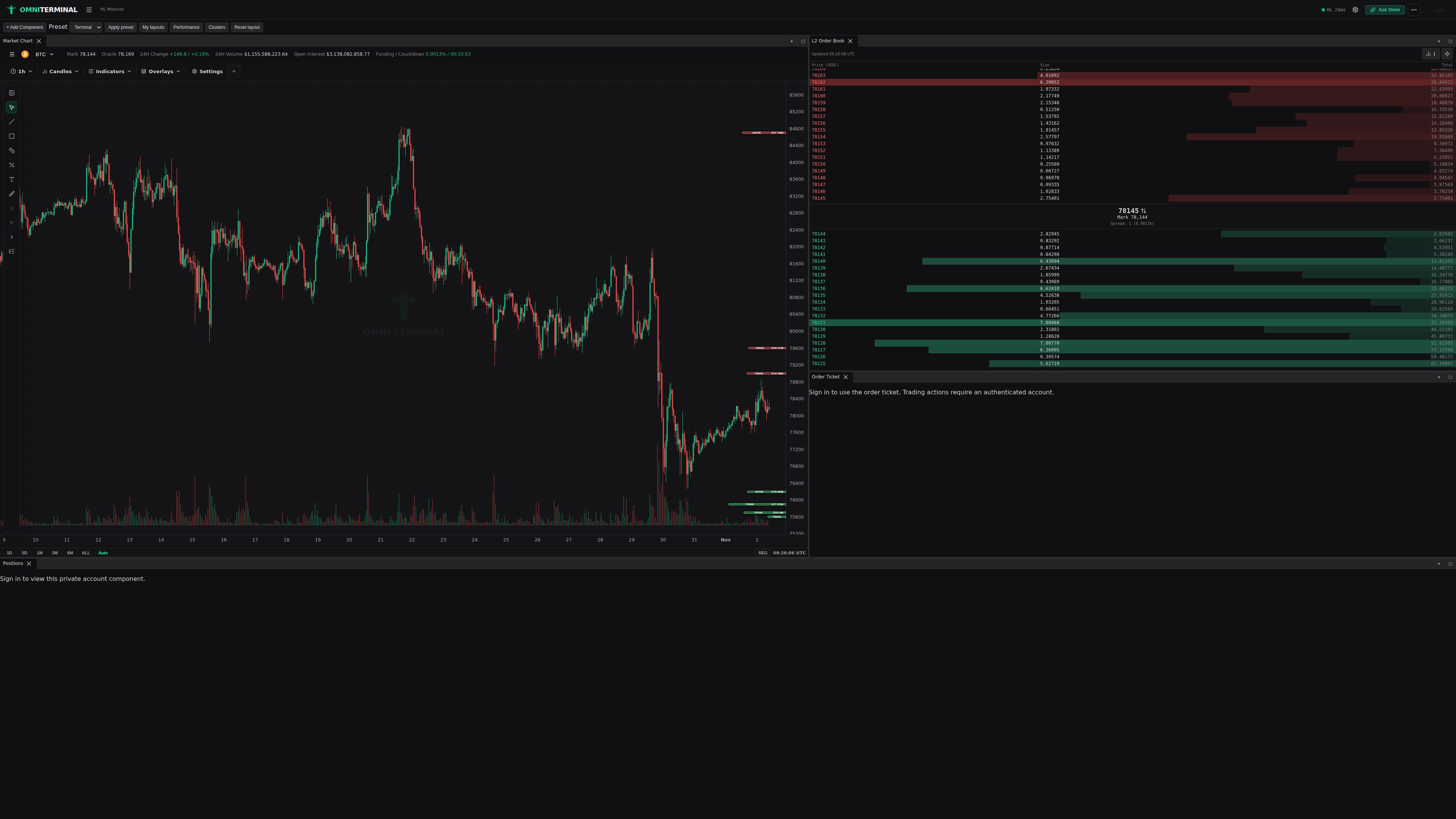
/terminal?symbol=hyperliquid:BTC:USDC:perp 2026-11-02 - docs-v1What you can add
Panels are grouped. Add only the ones you look at.
- Markets: chart, L2, L4, trades, symbols.
- News and analytics: news, liquidation map and stats, funding, and margin stress. Tools follow the active release gates.
- Account: positions, orders, fills, balances, and deposits. Observe mode uses available public wallet records read-only; own-account data and the order ticket require sign-in.
Phone
The dock is optional on a phone.
- Trade layout keeps the chart, size control, and ticket on one screen.
- Chart and Advanced still switch the top of Trade layout.
- Workspace Preview opens this dock. Pick a symbol from the symbols panel; the list scrolls inside the panel.
References
Implementation references
Panel registry
omni-terminal/src/lib/workspace/registry.tsNames and descriptions of the dock panels.
Phone layout choice
omni-terminal/src/lib/workspace/MobileLayoutChoice.svelteTrade layout and Workspace Preview labels.