
Guide
Trade from chart context without separating execution from risk.
Use the chart as the starting point for symbol context, order ticket review, liquidation pressure, funding, and news before placing a Hyperliquid order.
At a glance
- Workflow
- Chart -> ticket Move from selected market context into the order ticket while keeping risk panels nearby.
- Authority
- Wallet reviewed Funding and approval actions still require the connected wallet or scoped wallet authority.
- Safety
- Preflight first Review symbol, side, size, leverage, and account scope before submitting.
Why It Matters
What traders and researchers should take away
- Chart trading is faster when the price view, ticket, funding, and risk context stay in one workflow.
- The terminal keeps execution context close to liquidation and news signals so traders do not make ticket decisions in isolation.
- The guide explains the visible review steps without exposing private balances or wallet-specific state.
How it works
What the product uses behind the scenes
- The terminal route owns the chart, ticket, and adjacent market context.
- Server-side terminal data loads provide initial symbol and market snapshots before live streams update the UI.
- Wallet authority remains separate from stored agent trading authority for funding and approval actions.
Notes
Things to know
- This is a product workflow guide, not trading advice.
- Live account values, balances, and private positions should not be used in public screenshots.
- Orders should only be submitted after reviewing the final ticket state and wallet/account scope.
Guide
Steps
- Open the terminal market
Open
/terminalwith the intended symbol selected, then confirm the chart, account scope, and venue before changing ticket fields. - Review nearby context
Check chart movement alongside liquidation, funding, orderbook, and news context so the ticket is not reviewed against price alone.
- Set order details
Choose side, order type, size, price controls, and leverage or margin settings that match the account and symbol.
- Confirm preflight
Read the submit confirmation carefully, especially selected wallet, account mode, market, reduce-only state, and expected collateral impact.
Safety
Before using this workflow
- Do not place a live order from a public/demo guide session.
- Confirm selected wallet and account scope before submitting any order.
- Stored agents can trade but cannot authorize funding or collateral movement.
Next
Open the workflow
- Open Terminal Launch the trading workspace.
Screenshots
Real UI references
These are captured from Omni Terminal routes with public-safe state. Private balances, wallet secrets, access headers, and live private positions are not used.
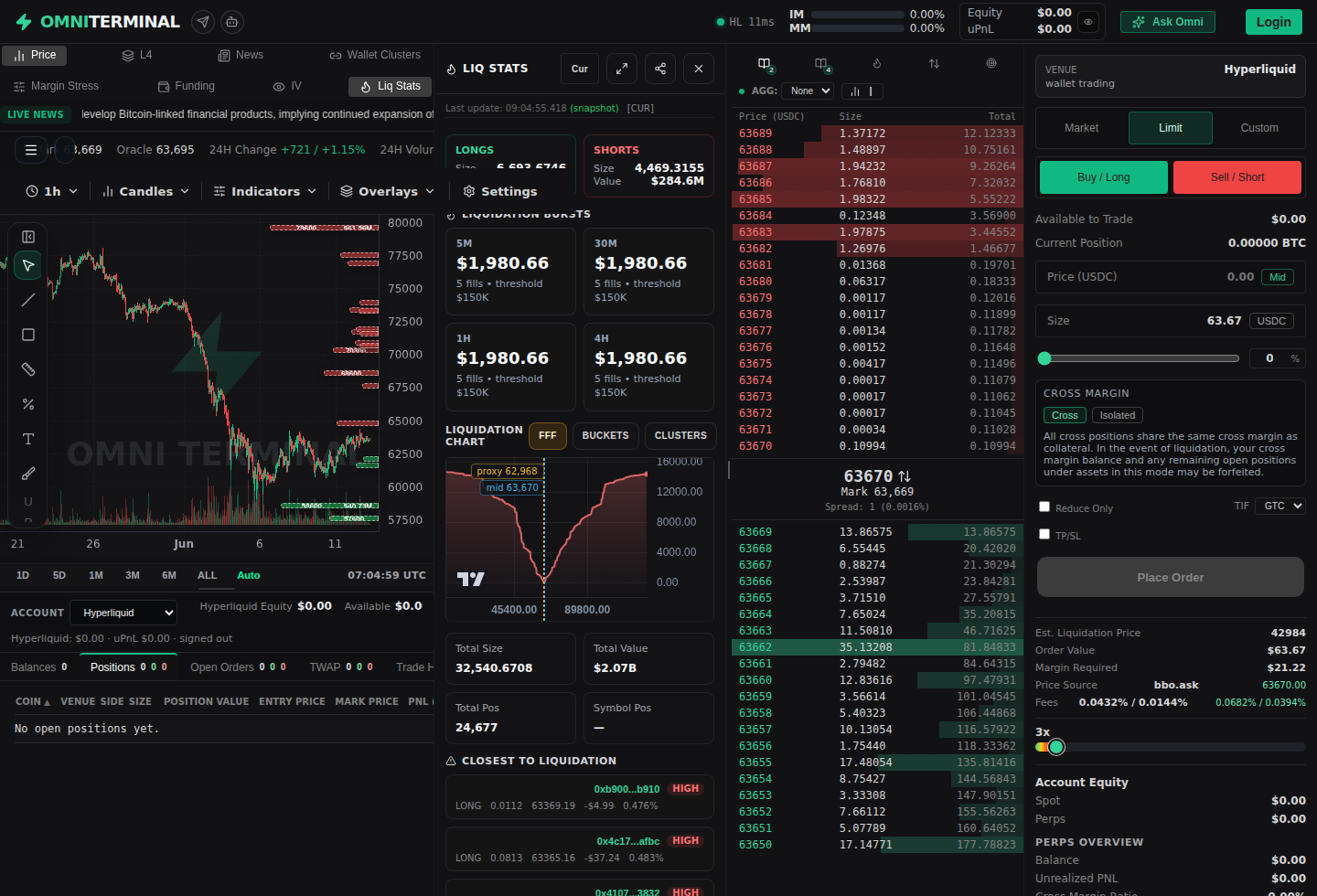
/terminal?symbol=BTC 2026-06-13 - docs-v1What this guide covers
This guide focuses on public-safe chart-to-ticket review.
- Choosing a market and keeping chart context visible.
- Reviewing venue, side, order type, size, price, leverage, and scope in the ticket before submit.
- Keeping orderbook, liquidation, funding, news, and account-scope checks in the normal workflow.
References
Implementation references
Terminal API architecture
omni-terminal/docs/ARCHITECTURE_TERMINAL_API.mdDescribes the terminal route and browser-facing API split.
WebSocket streams
omni-terminal/docs/WS_STREAMS.mdDocuments the websocket-first stream chain that powers the live terminal context.
Wallet linking model
omni-terminal/docs/WALLET_LINKING_MODEL.mdDocuments wallet ownership and authority boundaries.